Should I use ChatGPT's built-in Word export or a converter?
Use ChatGPT's built-in export when it's available in your mode and the content is simple prose — it's one prompt and you're done. Use a converter when the document has equations or complex tables, when the download link has expired, when you're on a tier or mode without the code tool, or when you want to see exactly what the file will contain before downloading. The converter route also works identically for Claude, Gemini, and Perplexity.
Can ChatGPT create Word documents?
Yes — ChatGPT can generate a .docx with its code / data-analysis tool (and some custom GPTs), giving you a download link. Two caveats: it isn't available in every mode or tier, and the auto-generated formatting is often basic — complex tables and LaTeX equations frequently don't survive. And if you just copy a reply and paste it into Word, the Markdown structure is lost. For a faithful document — editable Office Math equations, real tables, highlighted code — converting the Markdown with a tool like LLM to Doc is more reliable.
How do I export a ChatGPT conversation to Word?
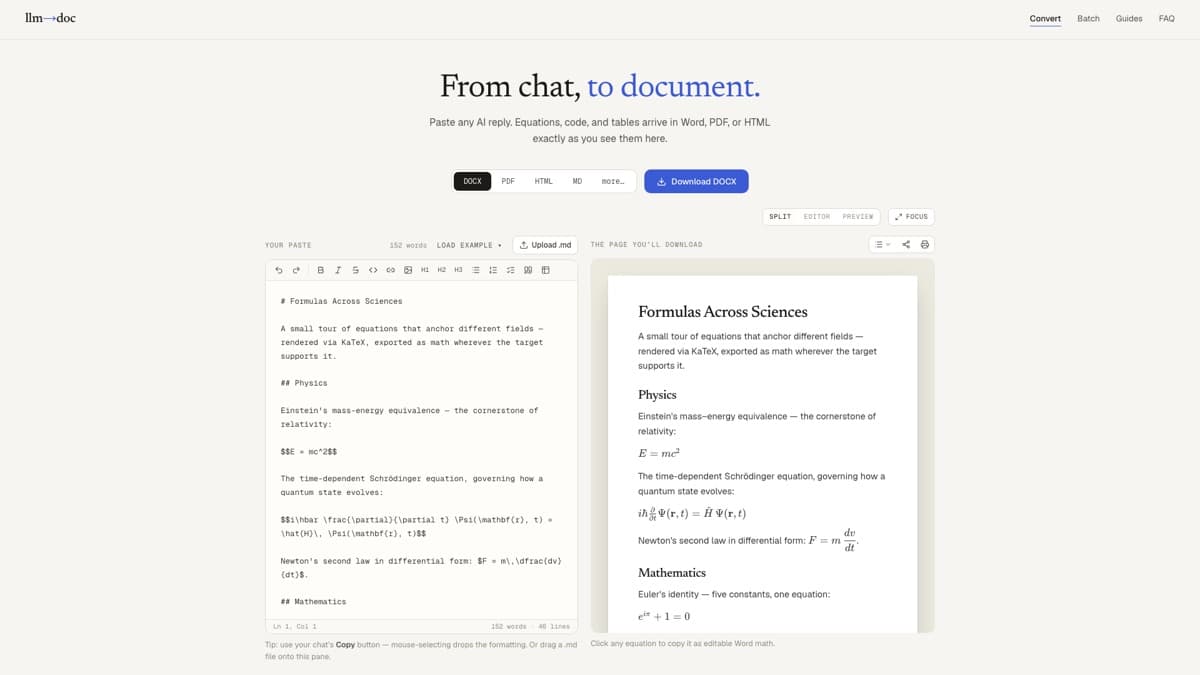
Copy the response using ChatGPT's copy button, paste it into LLM to Doc, and click DOCX. It takes about three minutes end-to-end, it's free, and there's no signup or extension to install.
Why does ChatGPT formatting break when I paste into Word?
Pasting raw text into Word discards the Markdown that carries the structure — fenced code, bullet markers, and LaTeX delimiters all vanish. Converting the Markdown to DOCX instead of pasting rebuilds that structure as real Word formatting.
Can I convert ChatGPT to DOCX with tables and equations?
Yes. Tables become real Word tables with aligned columns, and LaTeX math ($…$ and $$…$$) becomes native, editable Office Math (OMML) — you can click into any equation in Word and edit it.
Is there a free ChatGPT-to-Word converter, or do I need an extension?
LLM to Doc is a free web app — no browser extension, signup, or quota. The same flow also works for Claude, Gemini, Perplexity, and any assistant that emits Markdown.
Why is ChatGPT's export to Word not working?
The usual causes: the .docx download link from ChatGPT's code tool expired with the session (“file not found”), the formatting was stripped because the text was pasted straight into Word, or equations arrived as \( … \) text instead of rendered math. The reliable workaround for all three is the same — copy the response as Markdown with the copy button and convert it to DOCX instead of relying on ChatGPT's own file generation.
Why did my ChatGPT .docx download link stop working?
Files created by ChatGPT's code / data-analysis tool are stored in a temporary sandbox that resets when your session ends, so download links go dead — often within an hour or two. Regenerating the file works temporarily; converting the Markdown yourself avoids the expiring link entirely.