Save a ChatGPT chat as a PDF
ChatGPT has no PDF button, and printing the page gives you the interface, not the document. Paste the chat’s share link for the whole conversation, or one answer from its copy button, check the pages, and download a clean PDF. Free, built in your browser, nothing to install.
One answer rather than the whole chat? Paste it below instead.
- Time: about two minutes for a whole conversation, less for one answer.
- Cost: free. No signup, no quota, no extension.
- Two routes: the chat’s share link (every message, in order) or the copy button under a reply (one answer, as Markdown).
- Pages: A4 or Letter, three margin widths, optional cover, contents list, and page numbers — all from the document setup.
- Equations: ChatGPT’s
\( … \),\[ … \], and$ … $all render as mathematics through KaTeX. - Privacy: the PDF is built in your browser; nothing is uploaded. The share-link import reads the public page once on our server and keeps nothing.
Save one ChatGPT answer as a PDF
When you need one reply rather than the whole chat — a packing list, a short derivation, a function with its explanation — use the copy button under that reply. It is the small clipboard icon in the row of icons below every answer, and it copies the answer as Markdown, which is how ChatGPT formats everything: headings as hashes, tables as pipes, equations as LaTeX. Paste that into the box below and the converter renders it as the document you will download, with PDF selected. Want two or three answers in one file? Copy each with its button and paste them one after another; the preview shows the combined pages. Nothing uploads when you paste — the Markdown goes straight to your browser’s editor.
Nothing uploads when you paste. The next page shows the exact pages before you download the PDF.
Why select-all loses the tables and equations
Dragging across the answer and pressing copy takes the rendered text, not the Markdown behind it. A table arrives as words separated by spaces, with the columns gone; a code block loses its fence and its language; a formula arrives as whatever characters the browser drew for it, or as raw LaTeX with the delimiters stripped, which no PDF tool can turn back into mathematics. The copy button hands over the source ChatGPT wrote, so the converter rebuilds every table, code block, and equation exactly. If an answer has already been copied by selection and the equations look wrong, the fix is to go back to ChatGPT and copy it again with the button; there is no way to recover the structure from the flattened text.
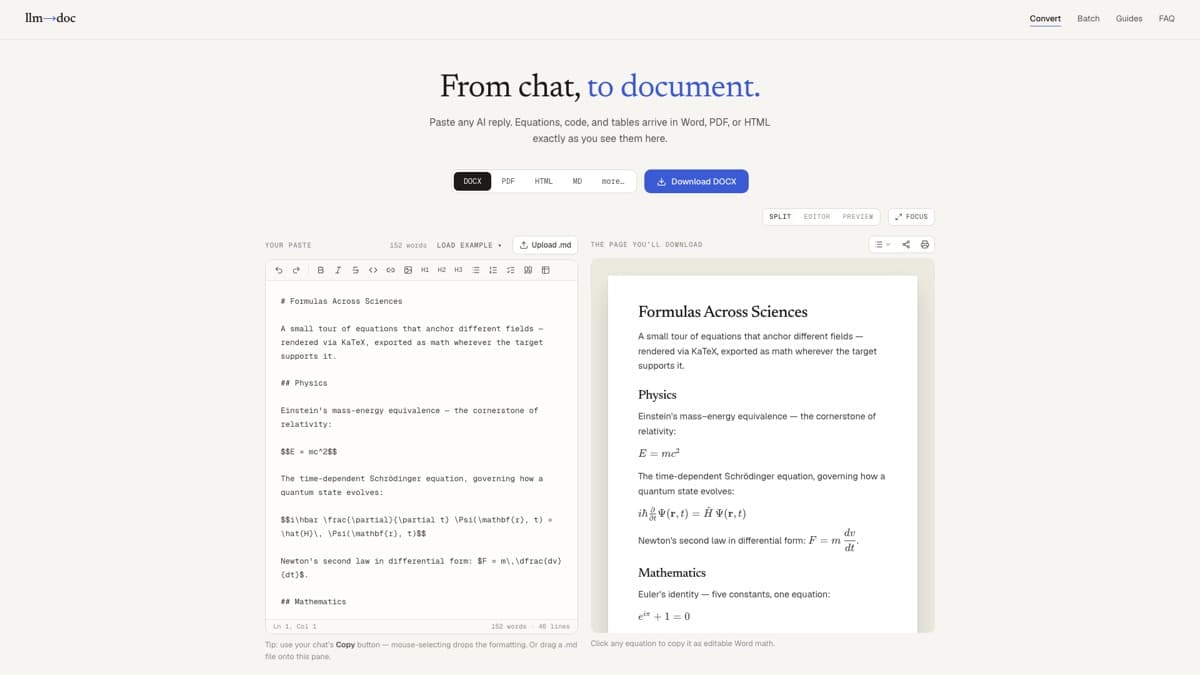
On iPhone and Android
Both routes work in the phone’s browser, with nothing to install. For the whole chat: in the ChatGPT app, open the conversation’s menu, tap Share, create the link, and copy it. Open this page in Safari or Chrome, paste the link into the box at the top, and the conversation opens with PDF selected; check the pages and tap Download PDF. For one answer: tap the copy button under the reply in the app, then paste the text into the box above. The PDF is built in the mobile browser itself — nothing is uploaded — and lands in the Files app’s Downloads folder on an iPhone or in Downloads on Android, ready to attach to an email or send on. Phones draw pages in smaller pieces than a laptop does, so a long chat full of formulas takes a little longer; the button spins until the file is ready.
Print to PDF from the browser — and why it disappoints
Every browser can print a page to PDF, so it is the first thing most people try. What comes out is the web page, not the document: the sidebar, the prompt boxes, the buttons under every reply, and often a dark background that swallows a printer’s toner. Code blocks are clipped at the right edge, wide tables lose columns, and page breaks fall wherever the browser runs out of room — between a heading and its first line, or through the middle of an equation, which may print as the formula or as the LaTeX behind it. Printing is good enough for a short, plain-prose answer you need on paper: choose Save as PDF and switch ChatGPT to its light theme first. For anything with a table, a code block, or an equation, start from the Markdown instead. The converter’s preview has its own Print button too, which prints the document alone at your chosen paper size and margins, with the cover, contents, and page numbers from the setup.
Equations, code and tables in the PDF
What each part of the chat becomes
- Equations rendered as mathematics, from ChatGPT's \( … \) and \[ … \] as well as $ … $
- Code blocks with syntax colours, long lines wrapped instead of running off the page
- Ruled tables with the alignment ChatGPT specified, shrunk to fit when wide
- Headings kept with their first lines — none stranded at the bottom of a page
- Page breaks checked against the rendered pixels, so no line is sliced in half
- A4 or Letter, narrow, normal, or wide margins, serif or sans body text
- Optional cover page, contents list, and page numbers from the document setup
How the pages are built
ChatGPT writes mathematics as LaTeX, usually between \( and \) for inline formulas and \[ and \] for displayed ones. The converter recognises those as well as the usual dollar signs and renders every formula through KaTeX, so a derivation of the period of a pendulum comes out as fractions, roots, and Greek letters rather than a line of code. Code blocks keep the same highlighting as the preview, with long lines wrapped. The pages are then drawn in your browser at twice screen resolution, and every page cut is checked against the rendered pixels before it is made, so a line of text, a table row, or a fraction is never sliced across two pages. The PDF export reference has the details.
Do you need a ChatGPT to PDF extension?
No. Browser extensions that add a PDF button to ChatGPT exist, and some work well for a while, but they come and go: the page they hook into changes without notice, and an extension that worked last month can stop rendering or disappear from the store. Each one also needs permission to read everything on chatgpt.com, which is the whole of your conversations, so it is worth asking who built it and what it sends where before installing. Nothing on this page is installed. The share link and the copy button are both features ChatGPT already has, they work in any browser on any device, including a phone, and the PDF is built on your own machine. An extension buys you one fewer paste; the routes above cost you that paste and nothing else, and they keep working when ChatGPT’s page changes, because they start from the text rather than the interface.
When something goes wrong
Almost every failed ChatGPT-to-PDF export is one of these. Match the symptom, apply the fix.
01The import says the page couldn't be read
Almost always the link was deleted or made private in ChatGPT, or it was copied incompletely — it needs the full chatgpt.com/share/… address. Open the link in a private browser window: if ChatGPT shows the chat, create a fresh link and try again; if it doesn't, the share no longer exists.
02ChatGPT put a bot check in front of the page
Our server reads the shared page the way a browser would, but ChatGPT sometimes answers it with a verification page instead. Nothing is wrong with your link. Open it in your own browser, copy the answers with their copy buttons, and paste them into the converter — the PDF is identical.
03A very long chat imported only its newest messages
Conversations that would run past roughly two hundred pages are trimmed to the most recent messages that fit, and a note under the title says how many of how many came through. For the earlier part, open the share link, copy those answers with their copy buttons, and paste them above the imported text. A shared page too large to read at all gets a message asking you to copy the part you need.
04A formula is shown in red in the preview
Red means the LaTeX could not be parsed — a misspelled command or an unbalanced brace, usually because the text was selected and copied rather than taken from the copy button. The delimiters are never the problem; the converter already understands ChatGPT's. Fix the formula in the editor on the left and the preview and PDF update at once.
05The PDF came out blank, or the export stopped with a message
The exporter checks every page for ink and refuses to hand you an empty file. When your browser cannot draw the document — very rare, usually an old browser or an enormous page — switch the format to Word or HTML, which don't need the browser's drawing engine, or split the chat into two documents and export each.
Frequently asked questions
How do I download a ChatGPT chat as a PDF?
Create a share link in ChatGPT (Share → Create link), paste it into the box at the top of this page, and the whole chat opens as a document with PDF already selected: title, your prompts as quoted blocks, every answer with its tables, code, and equations rendered. Check the pages, delete anything you don't want, and click Download PDF. The file is built in your browser in a few seconds. Free, no account, nothing to install, and it works the same on a phone.
Can I export a whole ChatGPT conversation to PDF?
Yes, from its share link. The import takes the conversation in order, as the shared page shows it — a three-message chat or a three-hundred-message one. Prompts arrive as quoted blocks labelled You:, answers verbatim. Very long conversations are trimmed to the most recent messages that fit in roughly two hundred pages, and a note under the title says so; the earlier answers can be copied in with their copy buttons. If you only want the answers, delete the quoted prompts in the editor before downloading.
How do I save a ChatGPT conversation as a PDF on my phone?
In the ChatGPT app, open the conversation's menu, tap Share, create the link, and copy it. Open this page in your phone's browser, paste the link into the box, check the pages, and tap Download PDF. The PDF is built in the mobile browser — nothing is uploaded — and lands in the Files app's Downloads folder on an iPhone or in Downloads on Android, ready to attach or share. For a single answer, tap its copy button in the app and paste the text instead of the link.
Does ChatGPT have a PDF export?
Not for an ordinary conversation. There is no Save as PDF button on a chat, and Settings → Data controls → Export emails you an archive of HTML and JSON files, not a PDF. In modes that include the code tool you can ask ChatGPT to write a PDF, but the file lives in a sandbox whose download link expires with the session, and the layout is whatever the tool managed. Printing the chat page from the browser works but captures the interface too. The share link avoids all of that: the conversation itself becomes the document.
Is my conversation uploaded?
The PDF is built entirely in your browser: parsing, rendering, and writing the file all happen on your machine, and the text never leaves it. The one step that touches our server is the share-link import, which has to read the public chatgpt.com/share page — it fetches that page once, extracts the message text, sends it to your browser, and keeps nothing, no copy and no log of the content. If you paste an answer instead of a link, nothing reaches a server at all.
Can I get Word instead of PDF?
Yes, from the same import or paste. Switch the format to DOCX and the equations arrive in Word as native, editable Office Math rather than pictures, tables become real Word tables, and headings map to Word heading styles. HTML, EPUB, PowerPoint, Excel for the tables, and a Google Docs handoff are there too. The conversation stays loaded while you switch, so you can download several formats without importing again.
Ready to try it?
Paste a ChatGPT answer or the chat’s share link and you’ll have a clean PDF in a few seconds. Prefer Word? The ChatGPT to Word guide covers the same flow for .docx.
Open the ChatGPT to PDF converter